ESP32 Binary Flash in Windows

So far we have been using Linux Based OS and command line to flash esp32. It is the usual process for developers but there may be cases when we need to release only the binary/hex file to a client or production team who uses Windows. This post is about how we can make use of a windows App that eases out the ESP32 Flashing process. Once it is set up it becomes very easy for the end-user to use.  

  1. Download Flash Download Tools from https://www.espressif.com/en/support/download/other-tools 
  1. Now back to our Linux Based Development Machine. Let's bring out the binary files from the build folder . For example, I have compiled a project named esp32_mesh . The folders of the project looks like 

  2. Transfer the following 4 bin files from the build folder to the intended Windows Machine. In your case, the project name will be different 

  1. Now At your windows Machine, Run the installer downloaded at step 1 

  • Then open the bin files and put the following address
  • Check all the checked marks at the left side tick boxes 

The Addresses are

bootloader.bin             0x1000
esp32_mesh.bin 0x10000
ota_data_initial.bin 0xD000
partitions.bin 0x8000

  • Connect the hardware / esp32 devkit over USB 
  • Hold down the boot button and then click on Start
  • After Flashing gets completed the Finish state will be shown below

  • Click the Stop button and close the application
  • Then on your windows Machine open Putty, a popular terminal software 

  • And check the debug output at Putty 


STM32-Nucleo-F070RB Hardware Introduction

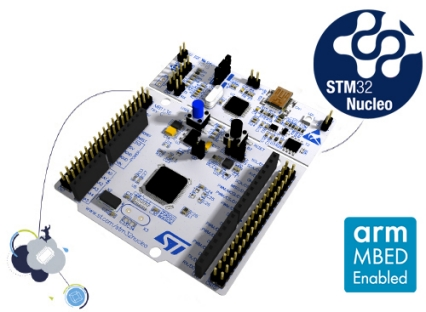
STM32 microcontrollers are heavily used around the globe. The reason behind choosing stm32 MCU is numerous. The SDK is very stable. The Processors are ARM type and we do find a lot of examples and learning resources. In this post, I am going to explain the inner details of a popular STM32 board. STM32 mcu-based boards are branded as Nucleo Boards. They are quite extensible and easy to bring up. 


Product Link: https://www.st.com/en/evaluation-tools/nucleo-f070rb.html

Microcontroller : STM32F070R8T6

It has Arduino UNO alike header as well  

Product Overview 


You can Go through the product overview document, Each Board has a corresponding board reference number. https://www.st.com/resource/en/data_brief/nucleo-f070rb.pdf 


Hardware overview - UM1724


STMicroelectronics keep hardware reference guides and for our chosen board the User manual is UM1724


I would advise you to Go through this document https://www.st.com/content/ccc/resource/technical/document/user_manual/98/2e/fa/4b/e0/82/43/b7/DM00105823.pdf/files/DM00105823.pdf/jcr:content/translations/en.DM00105823.pdf 


You can download the reference documents for future studies. Right now only going through this post will give you an overall idea of how to bring up this board and grasp enough tips/tricks to play around with it. 


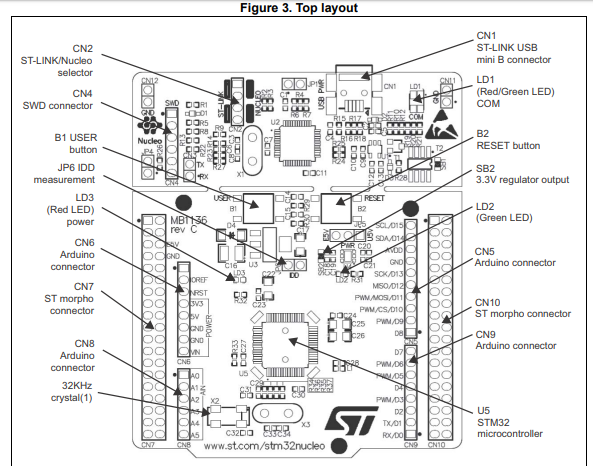
Take a close look at the board parts 
ST-LINK Programmer 


STM MCU programmers are popularly known as ST-LINK. This board has an ST-LINK 

The embedded ST-LINK/V2-1 supports only SWD for STM32 devices


New features supported on ST-LINK/V2-1: 

  • USB software re-enumeration 
  • Virtual COM port interface on USB 
  • Mass storage interface on USB 
  • USB power management request for more than 100 mA power on USB

Known limitation: 

Activating the readout protection on ST-LINK/V2-1 target prevents the target application from running afterward.  So during development, The target readout protection must be kept disabled on ST-LINK/V2-1 boards.


ST-Link options 

The embedded ST-LINK/V2-1 can debug/program the onboard MCU 

Both CN2 jumpers close

The embedded ST-LINK/V2-1 can debug/program external MCU via the CN4 connector 

Both CN2 jumpers open


Power Supply options 


1

U5V / VBUS

by the host PC through the USB cable 

CN1

JP5 jumper to U5V 

internal

100mA 

300mA

2

VIN (7V-12V)

Arduino header

CN6

JP5 jumper to E5V 

external

800mA

3

E5V (4.75V - 5.25V) 

ST morpho connector

CN7

JP5 jumper to E5V 

external

500mA


If your stm32 and additional shield require more than 300mA current then choose any of the external options 


USB power options 


If you choose option 1 above then you can see there are 2 modes one is 100mA another one is 300mA, you can select this by JP1 jumper

300mA will flow if

  1. The host can provide up to 300mA

  2. The host has USB enumeration support: i.e. host can detect USB device 

  3. JP1 is Off 


Then, at first, the host will provide 100mA, during USB enumeration 300mA will flow as it is needed at that time. 


In another case when JP1 is off & a USB charger is used to power the board through CN1 then the following happens 

  1. ST-Link gets powered up, 100mA flows

  2. USB enumeration is absent at host [charge] but 300mA is required 

  3. as the charger does not have USB enumeration so stm32 is not powered 


In this case, JP1 should be on to power stm32 anyway 


We will keep JP1 off & use the U5V internal option


LD3 PWR the red led indicates that the stm32 part is powered and +5V power is available 


JP6(IDD) should be on, an ammeter may be connected to it in series if you want to measure the current draw by the stm32 


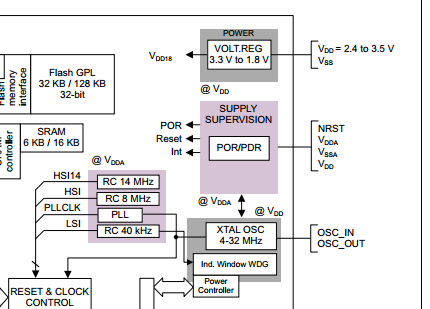
Vdd = 2.4V to 3.6V

VddA = from Vdd to 3.6V [external analog power supply for ADC]


 POR = power on reset 

At startup, It monitors Vdd voltage 

the device remains in reset mode if Vdd is below 2V


VDDA should arrive first and must be greater than or equal to VDD , VDDA powers up the clock, and Power supply supervision blocks 


PDR = power down reset 

It monitors both Vdd & VddA voltage 

the device remains in reset mode if Vdd or VddA is below 2V 


Max CPU Freq = 48MHz 


3 low power modes


Sleep mode

Only CPU is stopped

Somewhat consumption

Stop mode

SRAM and Register contents are retained 

Low power consumption

Standby mode

SRAM and Register contents are not retained 

Lowest power consumption


Clock 


  1. System clock selection is performed on the startup

  2. On reset, the internal RC 8 MHz = HSI is selected as the default CPU clock 

Ideally, a crystal oscillator is connected to OSC_IN, OSC_OUT pins pair and the PLL multiplies the crystal oscillator signal to PLLCLK which becomes the CPU clock 


For example, a production circuit has the following setup where A fixed 16MHz crystal oscillator is connected to OSC_IN and OSC_OUT 
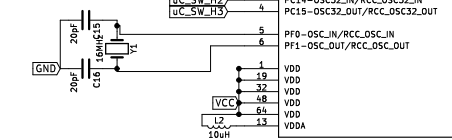


MCO: STM32 has the possibility to bring out a clock signal on a PIN called `MCO`. It takes one of the selected clock sources, puts it through a divider, and brings it out to a GPIO pin


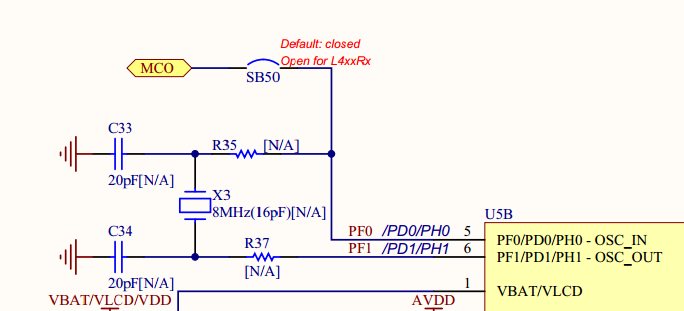
The Nucleo board which I am using is MB1136 C-03, by default in this board the MCO output from ST-Link is used as the input clock to OSC_IN [ PF0, PF1 ]. it is fixed at 8MHz, you can see it in the following picture. 


do not get confused by X3 as shown here. It is not present in MB1136-C03 [N/A is shown ]

RTC-Clock


The MCU has internal RTC clock, it’s sources can be 

  • A 32.768 kHz external crystal

  • Internal low-power RC oscillator [ 40KHz ]

  • High-speed external clock [ divided by 32 ] 

  • A resonator or oscillator 


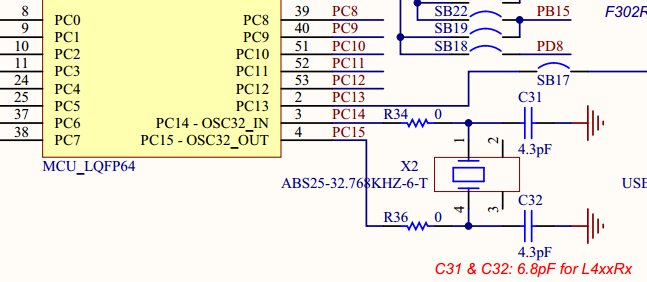
By default, The MB1136 C-03 board has an onboard ABS25 crystal oscillator [ 32.768 KHz] as the clock source for the RTC. The crystal is connected to the OSC32_IN OSC32_OUT [ pin PC14, PC15 ] 


USART


The MCU has upto 4 USART 


The  pins corresponding to USART2 are PA2 and PA3 


In the MB1136 C-03 board by default, these pins are connected to ST-Link MCU ( STLK TX, STLK RX) near the CN3 connector 


Jumper states [ default ]


SB62

open

SB63

open

SB13

close

SB14

close


The TX, RX at CN3 becomes a virtual COM port for the mBed platform


In Next Post we will Setup IDE and Toolchain to Program the microcontroller


ESP32 JTAG debugging Setup Using JLink

After Flashing firmware to a microcontroller we normally test & debug the behavior of the application using either an oscilloscope, logic analyzer, or seeing and probing everything manually. Another popular mechanism is to connect a USB UART module to a dedicated UART peripheral and see everything on the PC side using Serial Terminal Software. 

But ...
- What if we need to deep dive and see what is happening inside the processor? 
- What if we want to debug through breakpoints set at source code and navigate through the code just like a Regular Software Engineer Does? 

If your answer is yes then this post might be helpful. 

Microcontrollers are resource-constrained small computers and debugging at the CPU level is not so common . over the years' semiconductor manufacturers have jointly developed a protocol named JTAG to establish a common standard that we all can follow to debug these tiny computers. Not all the mcus in the market have the JTAG stack embedded inside the silicon but nowadays it has become more mainstream. We will first discuss the common concepts behind JTAG and then look into how we can set up everything. Our Target platform will be ESP32. 

JTAG stands for Joint Test Action Group 

The CPU inside an MCU is equipped with an On-Chip Debug Module. This on-chip debug module understands JTAG protocol and can communicate with the CPU under the rules set by JTAG specification. For example, our target MCU ESP32 has an on-chip debug module. 


Then this on-chip debug module is routed to JTAG pins which are exposed at the external side of an MCU. The naming convention and behavior of these pins are as per the JTAG standard.


JTAG specification allows us to 
  • Program the microcontroller 
  • Halt the CPU
  • inspect Microcontroller Registers and memory 
  • Define breakpoints 
  • Allows single stepping through the code 
  • Allows sending debug string messages [ e.g. ARM CPU has ITM (instrumentation trace macro-cell) ] 
  • Tracing 
Client and Server Model 

From a high-level point of view, there are 2 entities: At one end we have the microcontroller and at the other end we have our development machine ready to debug the target MCU. We need to visualize The Host side PC as a client and the microcontroller as a server. 


Required Tools 

By this time we have well understood the system-level topologies, now let's look into what kind of software we need. We will be using GDB ( GNU Debugger ) as our debugger software.  

GDB has a GDBClient program for almost Every kind of CPU architecture. During the installation of ESP-IDF, it got automatically installed in our system. 

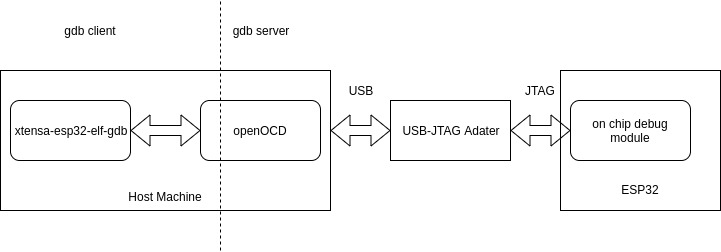
At the microcontroller end, The on-chip-debug module itself will not act as a server, we would need 2 more components in between. one is a hardware component named JTAG-Adapter and another one is a software component named OpenOCD. Have a look at the following diagram to understand the whole idea 

The OpenOCD got also installed during esp-idf setup. you can look into my previous blog post on setting up ESP-IDF SDK setup from here ESP-IDF setup in Ubuntu

J-Link by Segger Embedded is a very common & popular JTAG adapter. we will use it in our setup. 

JLink & ESP32 JTAG connection

A JTAG Port has a fixed set of PIN allotments. There are a couple of variants, of them we will follow the 20-pin option 

Connect your ESP32 to the JLINK as per the following table 

JLink

ESP32

VTref

3.3V

nTRST

EN

TDI

GPIO12

TMS

GPIO14

TCK

GPIO13

RTCK

GND

TDO

GPIO15

Pin No 4 [GND] 

GND


My Connection Setup Looked like this 

I followed the following link 

You may get more help on the connection from this link ESP32-to-JTAG-connection

Now Plugin JLink to your USB port

JLink Driver Installation

I assume that you have not installed JLink Before so let's install the driver for our ubuntu host

First Download jlink deb format installer from J-LinkSoftwareAndDocumentationPack

it will get downloaded to your Downloads folder, so CD into it and use dpkg to install 

~/Downloads$ sudo dpkg -i JLink_Linux_V650b_x86_64.deb 

(Reading database ... 206817 files and directories currently installed.)
Preparing to unpack JLink_Linux_V650b_x86_64.deb ...
Removing /opt/SEGGER/JLink ...
Unpacking jlink (6.502) over (6.502) ...
Setting up jlink (6.502) ...


Check JLink Rules 


~$ ls /etc/udev/rules.d/


60-vboxdrv.rules                   70-snap.electronic-wechat.rules
70-snap.canonical-livepatch.rules  99-jlink.rules
70-snap.core.rules                 99-USBAsp.rules


If Jlink rules are automatically added like above then JLink is installed properly.

Now connect your ESP32 devkit to host over USB


Program ESP32 over JTAG & OpenOCD


The focus of this post is to debug ESP32 via JTAG but we can also Program the microcontroller via JTAG port. When we setup ESP-IDF first we got many examples as part of the SDK. we will program the usual Blink example application. 


CD into the project and load esp-idf environment 


~/esp/esp-idf/examples/get-started/blink$ . ~/esp/esp-idf/export.sh 


This will load esp-idf compiler toolchains and openocd executables in our shell environment 


Check JTAG connection with ESP32 via OpenOCD


Then run the following command to test jLink Connection to ESP32 


~/esp/esp-idf/examples/get-started/blink$ openocd -f interface/jlink.cfg -f board/esp-wroom-32.cfg


Open On-Chip Debugger  v0.10.0-esp32-20190708 (2019-07-08-11:03)
Licensed under GNU GPL v2
For bug reports, read
http://openocd.org/doc/doxygen/bugs.html
adapter speed: 20000 kHz
Info : Configured 2 cores
esp32 interrupt mask on
Info : Listening on port 6666 for tcl connections
Info : Listening on port 4444 for telnet connections
Info : J-Link V9 compiled Jun  2 2222 22:22:22
Info : Hardware version: 9.40
Info : VTarget = 3.291 V
Info : Reduced speed from 20000 kHz to 15000 kHz (maximum).
Info : clock speed 20000 kHz
Info : JTAG tap: esp32.cpu0 tap/device found: 0x120034e5 (mfg: 0x272 (Tensilica), part: 0x2003, ver: 0x1)
Info : JTAG tap: esp32.cpu1 tap/device found: 0x120034e5 (mfg: 0x272 (Tensilica), part: 0x2003, ver: 0x1)
Info : esp32: Debug controller 0 was reset (pwrstat=0x5F, after clear 0x0F).
Info : esp32: Core 0 was reset (pwrstat=0x5F, after clear 0x0F).
Info : esp32: Debug controller 1 was reset (pwrstat=0x5F, after clear 0x0F).
Info : esp32: Core 1 was reset (pwrstat=0x5F, after clear 0x0F).
Info : Listening on port 3333 for gdb connections


If you get an output like the above then connections are okay and openocd has been able to communicate with the on-chip debug module of esp32

Program ESP32 using JLink

You can also program the application binary over JTAG connection, we will build and program the simple “blink” example application. 


Build the program first using idf.py 


~/esp/esp-idf/examples/get-started/blink$ idf.py build 


Now program it 


~/esp/esp-idf/examples/get-started/blink$ openocd -f interface/jlink.cfg -f board/esp-wroom-32.cfg -c "program_esp32 build/blink.bin 0x10000 verify reset exit" 


Here the ideal 0x10000 address was set


If the setup is okay then you will see output like this 


** Programming Started **
auto erase enabled
Info : Target halted. PRO_CPU: PC=0x400916EE (active)    APP_CPU: PC=0x40000400
Info : Flash mapping 0: 0x10020 -> 0x3f400020, 24 KB
Info : Flash mapping 1: 0x20018 -> 0x400d0018, 74 KB
Info : Target halted. PRO_CPU: PC=0x400916EE (active)    APP_CPU: PC=0x40000400
Info : Auto-detected flash size 4096 KB
Info : Using flash size 4096 KB
Info : Target halted. PRO_CPU: PC=0x400916EE (active)    APP_CPU: PC=0x40000400
wrote 151552 bytes from file build/blink.bin in 5.383243s (27.493 KiB/s)
** Programming Finished **
** Verify Started **
Info : Target halted. PRO_CPU: PC=0x400916EE (active)    APP_CPU: PC=0x40000400
read 148384 bytes from file build/blink.bin and flash bank 0 at offset 0x00010000 in 2.188784s (66.204 KiB/s)
contents match
** Verified OK **
** Resetting Target **


Now you will see that the board’s default LED(connected to GPIO2) is blinking 


Categories

Pages

Firmware Engineer

My photo
Works on Firmware, Embedded Linux, Smart Metering, RTOS, IoT backend

Contact Form

Name

Email *

Message *

Copyrighted by Hassin. Powered by Blogger.